

Coaching
Coaching gives your agent an internal coach you can talk to in order to improve it.
Overview
When coaching is enabled, your agent has a separate coach agent you interact with directly. The coach is focused on improving the coached agent — not on handling end-user conversations.
The coach can read the coached agent’s system prompt, memories, and procedures. You can ask it to change configuration based on a specific conversation, a pattern you have noticed, or instructions you provide in chat.
Memories
Memories are concise knowledge snippets the coached agent maintains and retrieves during conversations. Each memory has:
- Summary: A one-sentence, search-optimized description the agent uses to find relevant memories.
- Text: The full content — policies, steps, links, or other factual detail the agent should follow.
Memories are stored in a memory base on the coached agent. They are versioned, so updates create a new version rather than overwriting the previous one. Entries can have an optional expiry date.
Unlike a knowledge base, which holds large documents for retrieval, memories are short, targeted facts the agent curates over time. The coach is the primary way to create and update them. You can also view, edit, and delete memories from the Memory tab under Knowledge Base on your agent’s page.
What the coach can do
The coach can:
- Analyze a given conversation
- Modify the coached agent’s system prompt
- Create, update, or delete memories
- Create, update, or delete procedures
Proposals and approval
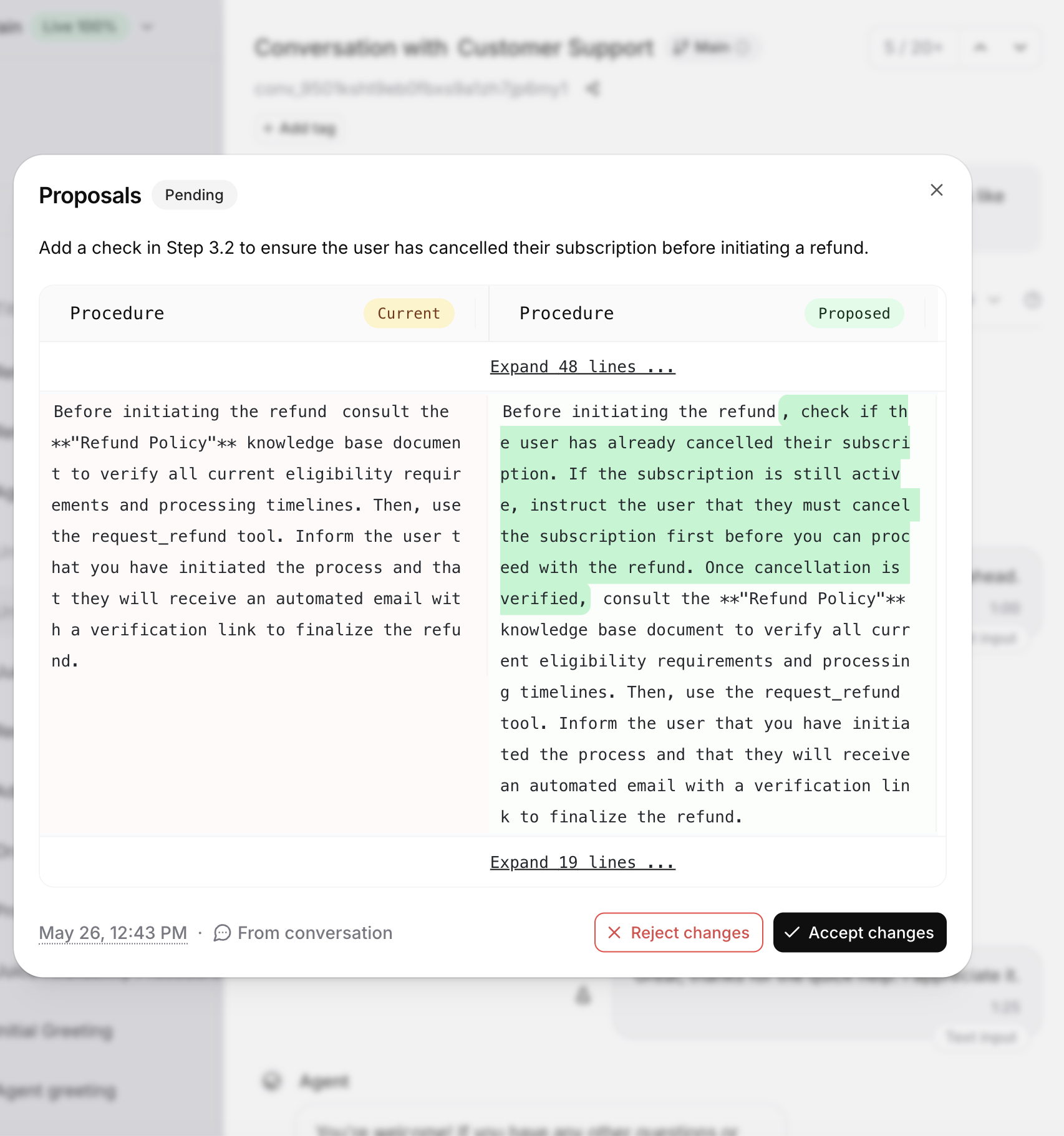
The coach does not apply changes automatically. When it identifies an improvement, it creates a proposal with a rationale and a diff showing exactly what will change.
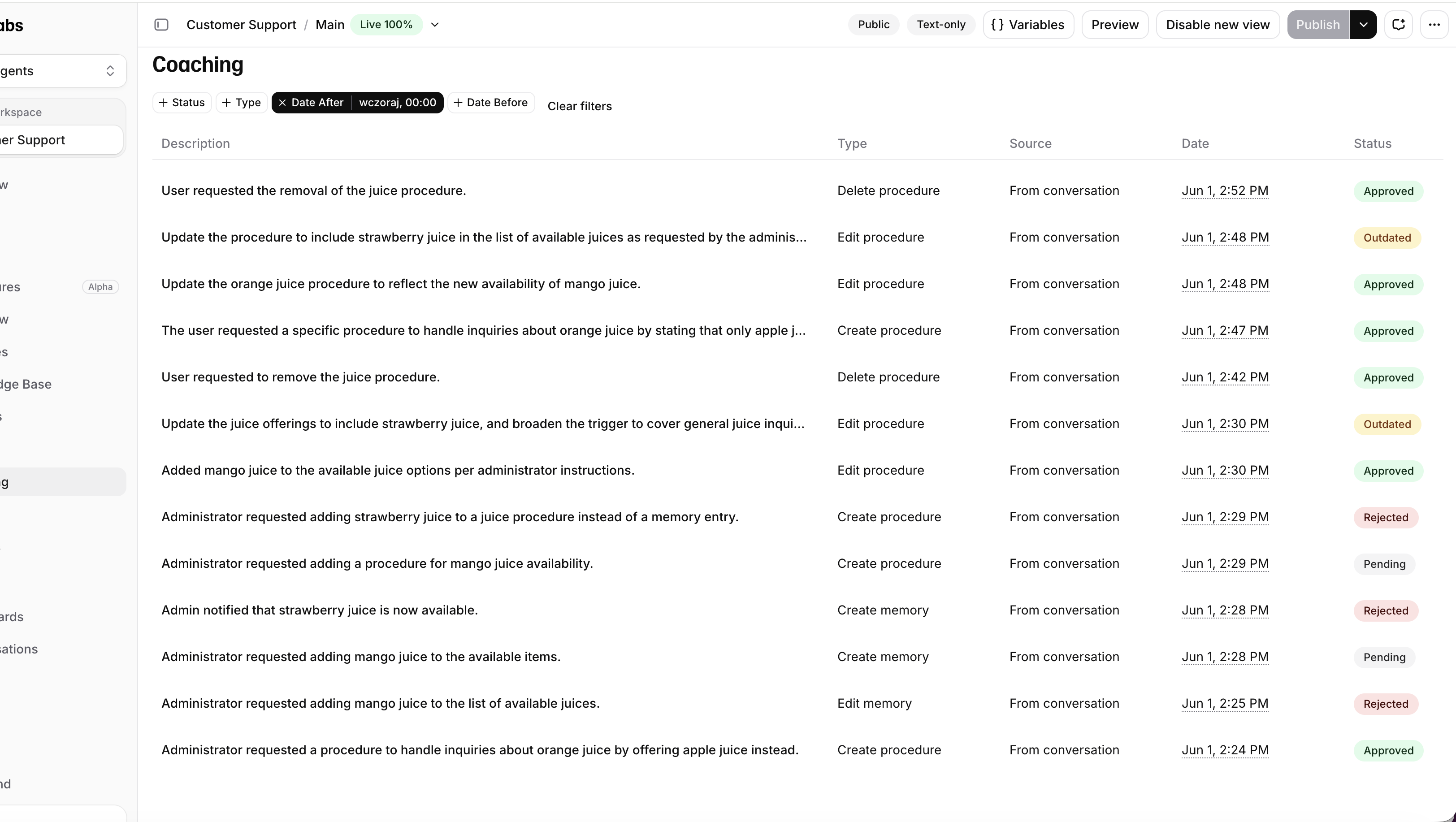
Proposals start as pending. Open the Coaching tab on your agent’s page to review them. Filter by status, type, or date range. Select a proposal to view its rationale and diff, then click Approve or Reject. You can also review proposals in Slack. Approved changes are applied to the coached agent immediately. Rejected proposals leave the configuration unchanged.
Getting started
Enable coaching
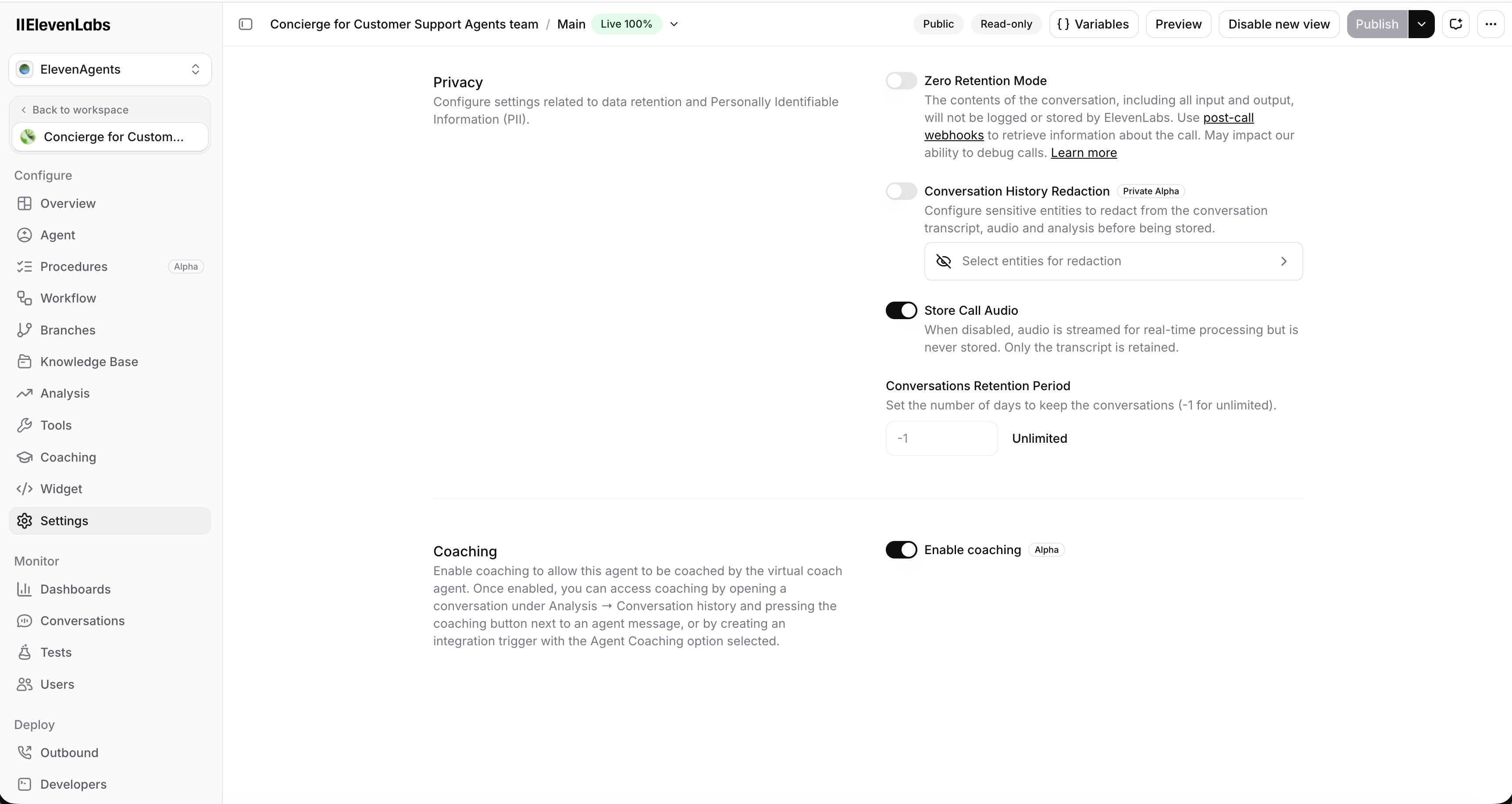
Open your agent in the dashboard. Go to Settings, open the Advanced tab, and toggle Coaching on.
Add a Slack trigger (optional)
To talk to the coach from Slack, create a Slack trigger for your workspace and select Agent name (coach) as the agent. This routes messages in the connected channel to the coach instead of the coached agent.
Examples
Ask questions about a conversation in the dashboard
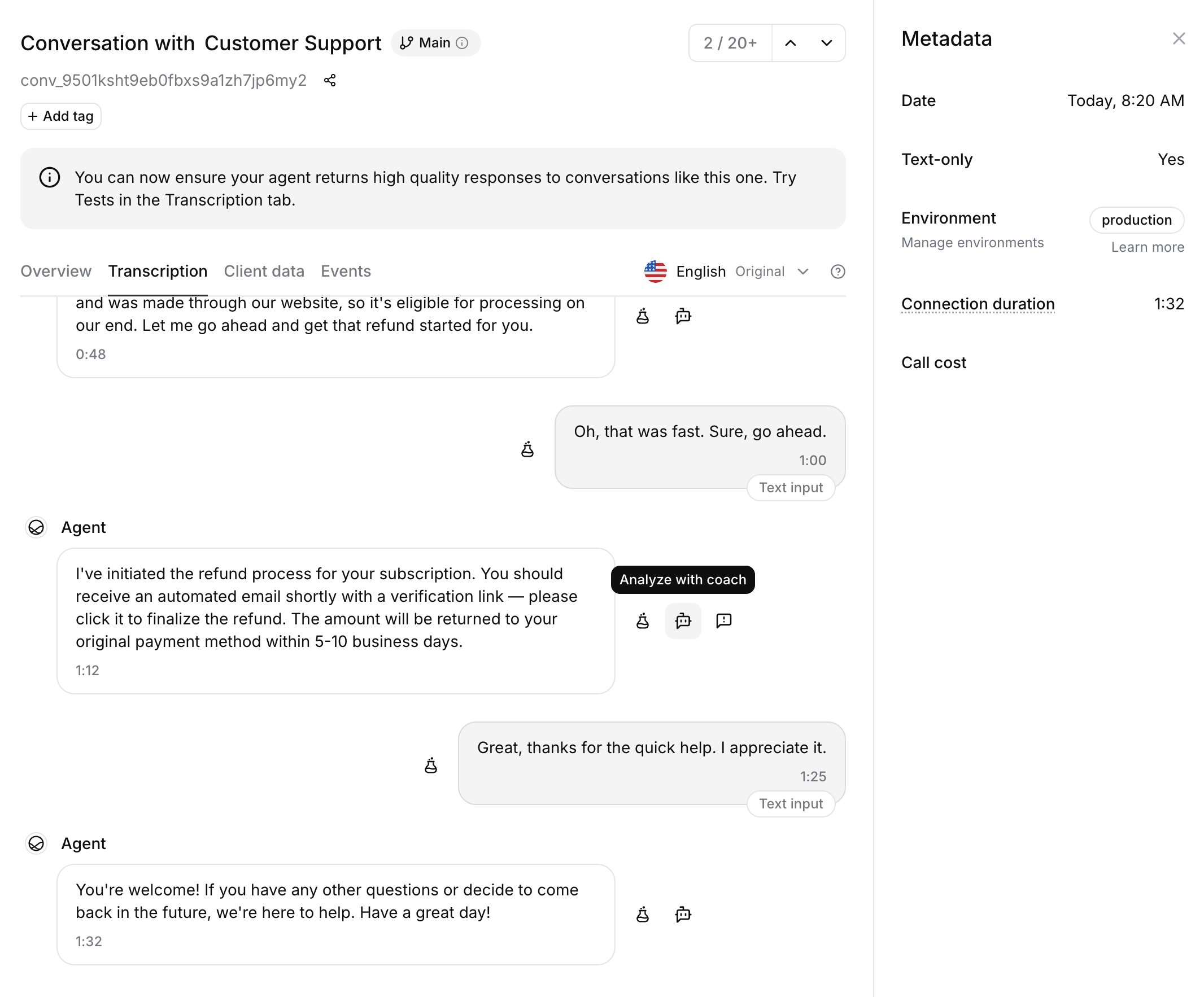
Start a coaching session
Click Analyze with coach to open the coach chat panel next to the transcript.
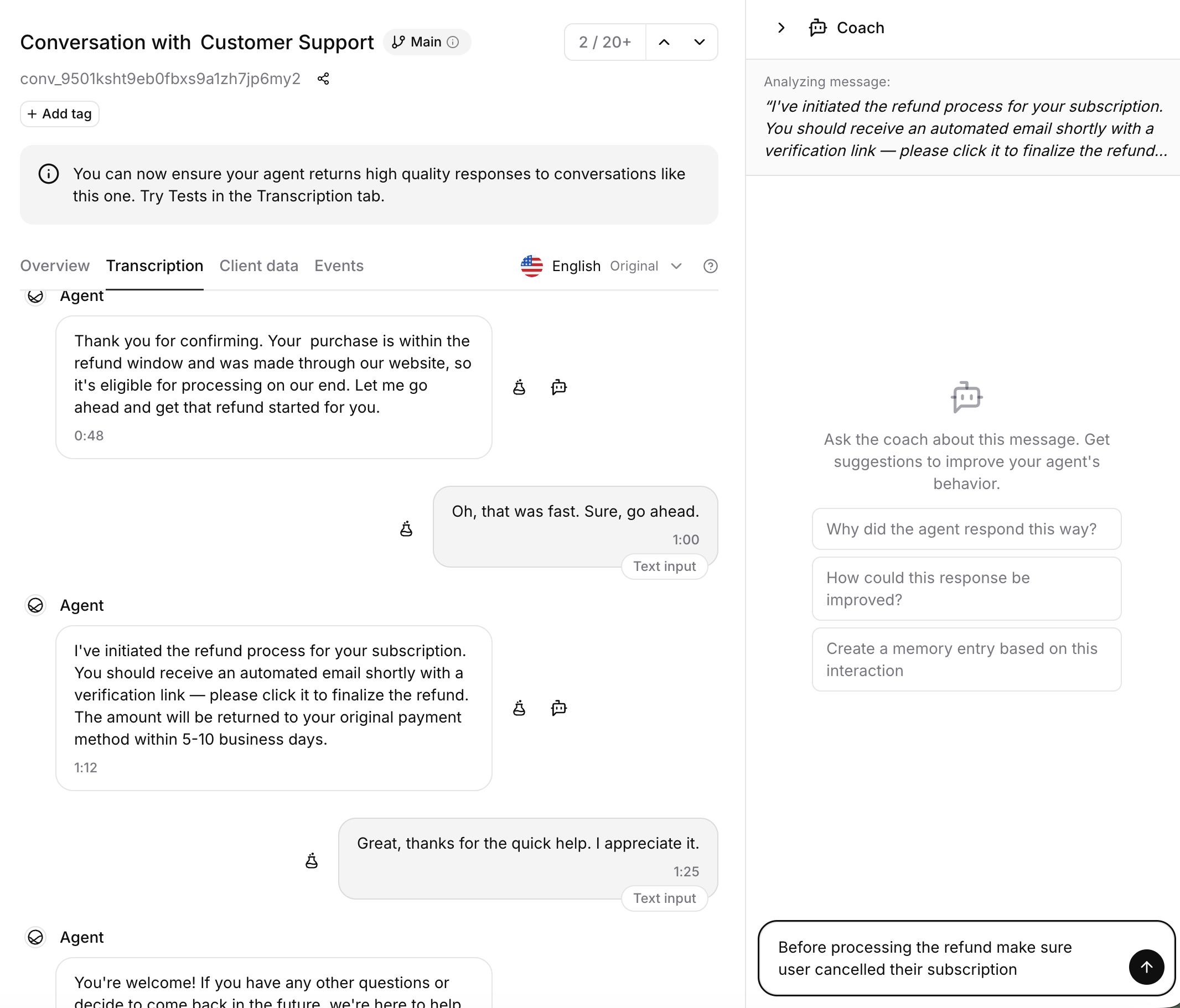
Type a question or use a quick prompt (for example, “What went wrong?” or “How can the agent improve?”). Highlight a specific message in the transcript to focus the coach on that part of the conversation.
Create a memory from Slack
When a coach Slack trigger is connected, you can manage the coached agent from Slack.
Message the coach
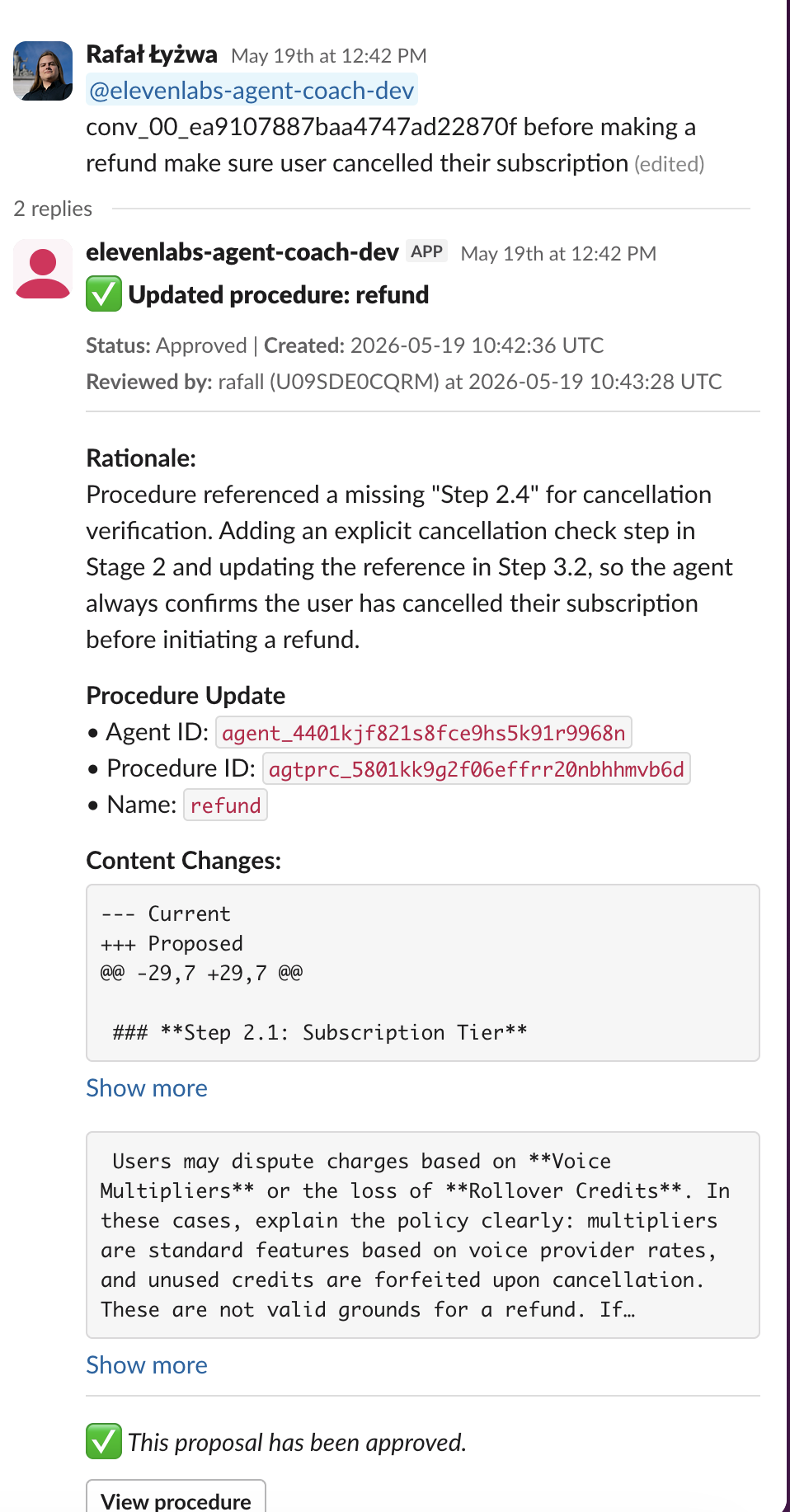
Send a message in the connected channel (for example, “Add a memory that refunds within 30 days are processed automatically”).
Review the proposal
The coach replies in the thread and posts a proposal with the proposed change and a diff. Use Approve or Reject on the message, or review it later on the agent’s Coaching tab.
Proposal messages in Slack include the type, rationale, diff, and action buttons. When a proposal’s status changes from Slack or the dashboard, the Slack message updates to match.
Coach chat
The coach chat supports multi-turn conversations. After the initial analysis, ask follow-up questions, request the coach to focus on a different aspect, or ask it to refine a proposal.
If you ask the coach to focus on a specific issue, it addresses only that issue and mentions other observations as follow-up suggestions rather than creating proposals for them.
Best practices
Target specific messages
Highlight a specific message in the transcript before asking the coach. Targeted questions produce more actionable proposals than broad reviews. Address multiple issues in separate questions within the same session.
Audit memory entries periodically
As the coach creates memories over time, review them on the Memory tab under Knowledge Base to remove duplicates or outdated information.
Troubleshooting
Proposal approval fails with a conflict error
The underlying resource was modified after the proposal was created. Reject the stale proposal and start a new coaching session.
Coach does not propose any changes
The coach only proposes changes when it identifies a clear improvement. If the conversation went well and the configuration already handles similar scenarios, the coach explains this instead.
Release status
Coaching is currently in Alpha. Expect the feature set, dashboard controls, and underlying schema to keep evolving before general availability.
Breaking changes during this period mainly affect existing proposals. Pending proposals may fail to approve or reject, and older proposals may display incorrectly in the dashboard or in Slack. Changes that have already been applied to your agent are not affected.