Analytics
Overview
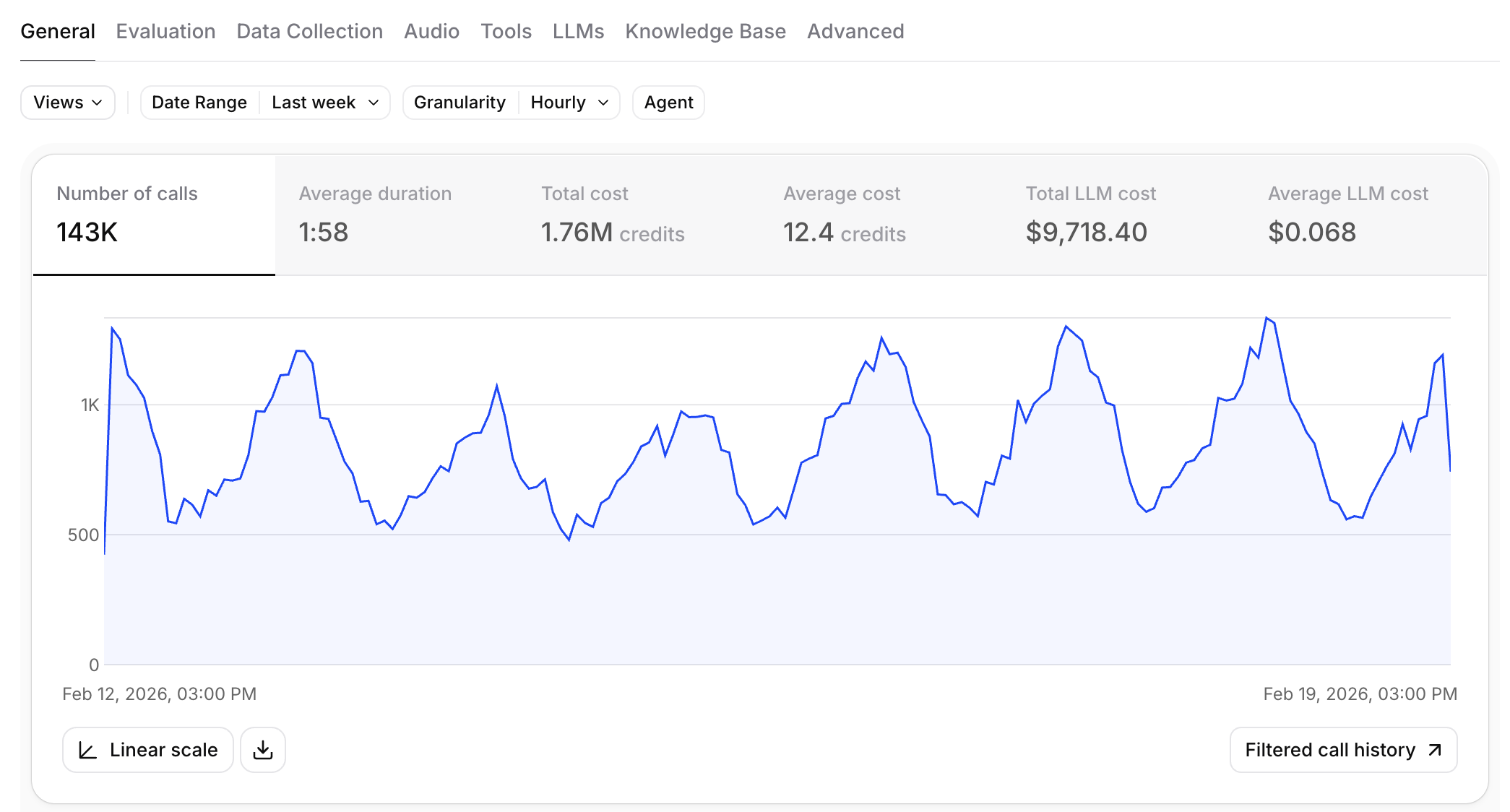
The analytics dashboard provides granular, real-time metrics for your conversational agents. You can break down performance across multiple dimensions — by agent, branch, time period, language, call type, model, and more — to understand exactly how your agents are performing in production.
Analytics data is powered by a high-performance columnar database, enabling fast queries across large volumes of conversation data with flexible filtering and grouping.
Accessing analytics
Navigate to the Analytics tab in your agents dashboard. You can view metrics across your entire workspace or filter down to a specific agent.
When running experiments, you can jump directly to branch-filtered analytics from the agent configuration page using the View Analytics button. This pre-applies the agent and branch filters so you can compare variant performance immediately.
Time range and granularity
Select the time range for your analysis using the date picker at the top of the dashboard. You can choose from preset ranges or define a custom window.
The dashboard automatically adjusts the granularity of time-series charts based on your selected range — hourly buckets for short ranges, daily or weekly for longer ranges.
Available metrics
Conversations
- Call count — total number of conversations in the selected period
- Total duration — aggregate conversation time
- Average duration — mean conversation length
- Total cost — total spend across all conversations
- Average cost — mean cost per conversation
Performance
- Agent response latency — time for the agent to respond (median and percentiles)
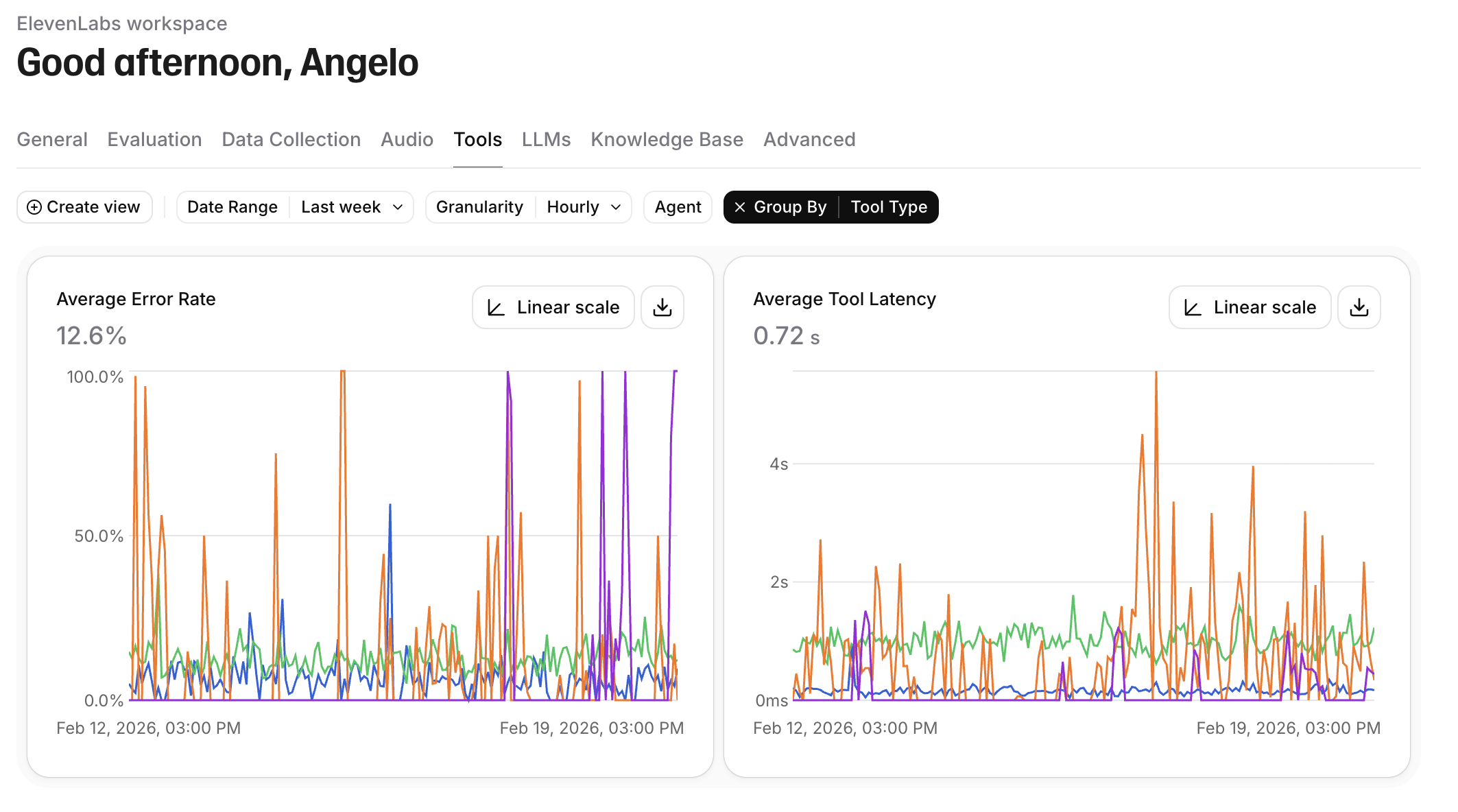
- Error rate — percentage of conversations with errors
- Error breakdown — errors categorized by type (tool failures, LLM errors, connection issues)
Success evaluation
If you have evaluation criteria configured, the dashboard shows success, failure, and unknown rates for each criterion. This is the primary way to measure business outcomes across experiments.
Data collection
If you have data collection configured, collected values are available as filterable dimensions in the dashboard.
Language breakdown
See the distribution of conversations across languages. This is useful for understanding multilingual adoption and comparing agent performance across different languages.
Active calls
The dashboard displays the current number of active calls in real time. This reflects ongoing sessions across your workspace and is also available via the API.
Filtering
Narrow your analytics view by applying filters on any combination of dimensions:
Grouping
Group metrics by any of the filterable dimensions to break down aggregate numbers.
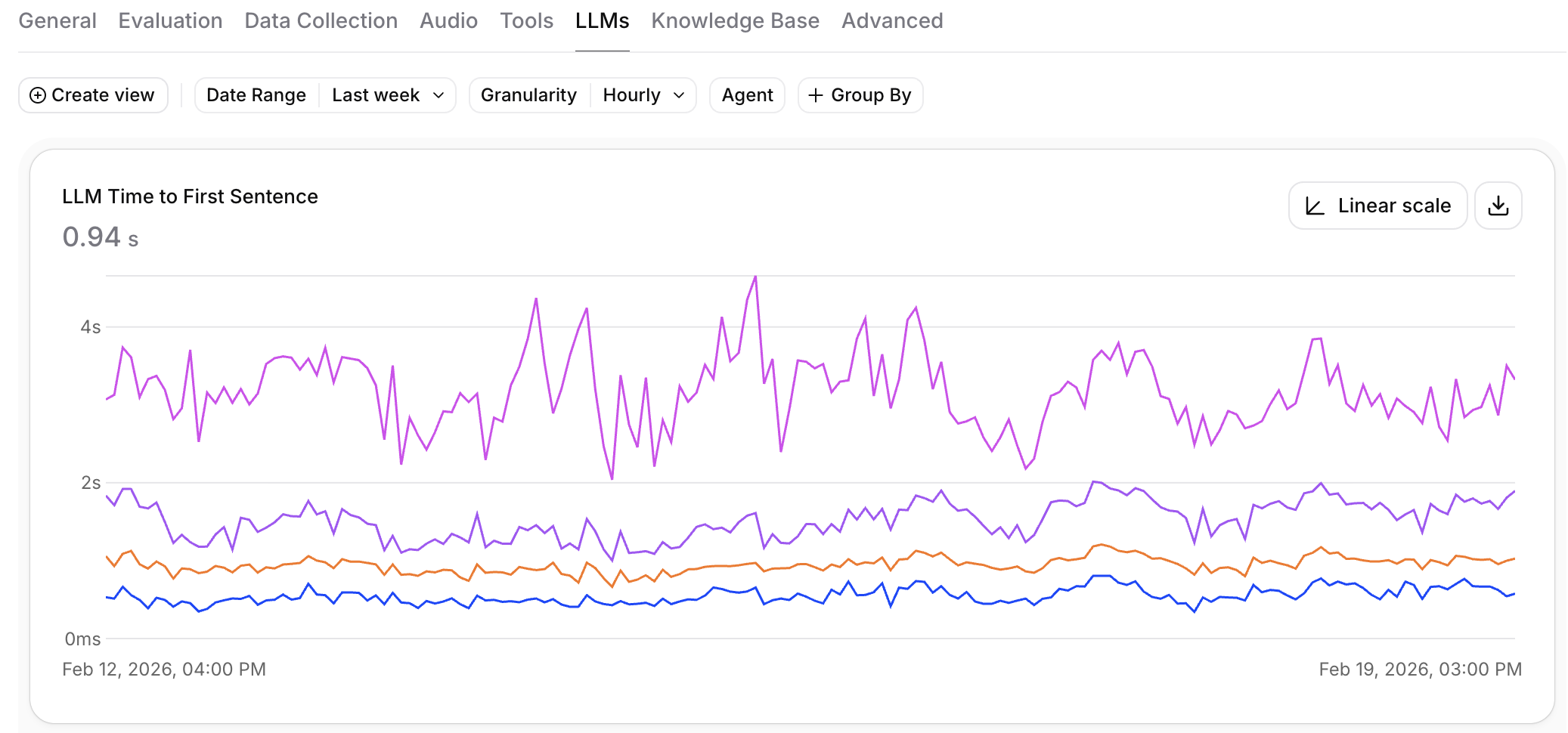
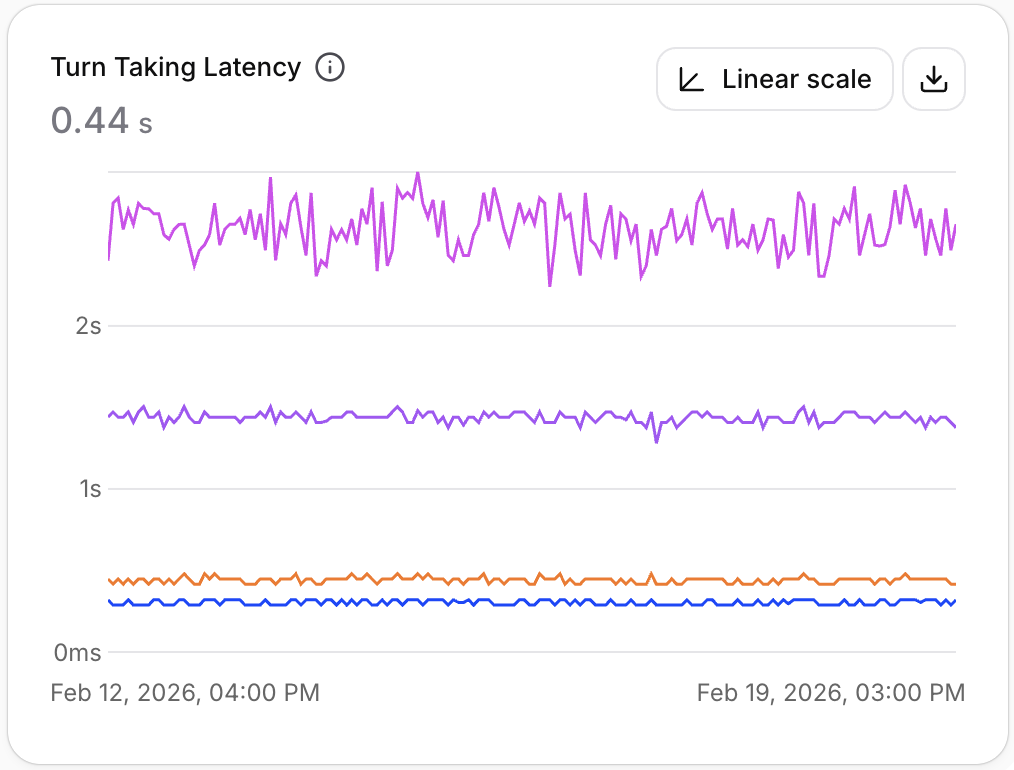
For example:
- Group by branch to compare experiment variants side by side
- Group by language to see how agents perform across languages
- Group by LLM model to compare model performance and cost
- Group by call type to understand differences between inbound and outbound calls
Multiple grouping dimensions can be combined for deeper analysis.
Using analytics with experiments
Analytics is the primary tool for measuring experiment outcomes. The recommended workflow:
You can jump directly to this view from the agent configuration page by clicking the View Analytics button next to your traffic deployment settings. This pre-applies the correct agent and branch filters.

